Hi Paul, I have decided to test out Start9 OS by following your video titled: $275 DIY Start9 Server Running Bitcoin Knots.
One question. My Node is configured with a 500GB NVME to function as a Start9 OS boot drive and also an internal 2TB SSD drive dedicated to storing only blockchain data. After watching your video it is not clear to me where in the Start9 OS installation process do I define I want to only use the 2TB SSD drive for blockchain data storage? Is such a blockchain data storage path defined during Start9 OS installation or is it defined after Bitcoin Knots software is installed? Thank you for your time.
The first time it asks you to pick a drive (first boot from the thumb drive) pick the smaller one. Then after removing medium and rebooting, when it asks you to pick a drive, pick the larger one.
It is not possible (short of lower level commands after SSH’ing in) to specifically only put the blockchain data on the larger drive. OOB, you can only select a second drive for all app data (including the blockchain data). Your 500GB drive will remain mostly unused in this setup.
Thanks for the info Paul. I will remove the 500GB NVME and just go with only using a single 2TB SSD drive. This seems to be the least complicated road to follow.
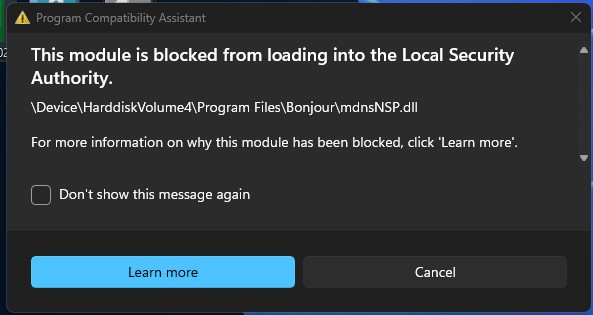
To use my Windows 11 PC as a client requires installing Bonjour to get access to the Start9 OS server (according to the Start9 OS instructions). So I downloaded Bonjour from the link provided in the Start9 instructions and installed it. Shortly, after I got the error message shown in the screen capture below. The path shown in the screen capture makes me suspect I installed malware because I have no such path in my Windows 11 PC. Has anybody out there encountered the same error shown below after installing Bonjour on a Win11 PC?
Any info on why Bonjour is generating such an error in my Win11 PC will be much appreciated. Thank you for your time.
This is a known issue with Bonjour on Windows 11, so not any indication that it is malware. “\Device\HarddiskVolume4” is the real “NT” path used internally by Windows NT ~1993 and adopted by XP and all later versions ~2001 (“C:” notation is just a backwards-compatible shorthand that Microsoft has kept since way back in the original MS DOS days, when “A:” and “B:” were 5.25" and 3.5" floppy disk drives, and “C:” was the hard disk drive)
But you can double-check if it is malware:
Check the digital signature on mdnsNSP.dll
Go to C:\Program Files\Bonjour\mdnsNSP.dll.
Right-click → Properties → Digital Signatures.
You should see a signature from Apple Inc..
Click Details and confirm “This digital signature is OK”.
Run a malware scan
Run Windows Security → Virus & threat protection → Quick scan.
If that’s clean and the file is signed properly, the odds this is malware are very small.
This problem is discussed on the apple forum here. I’ve not encountered it myself, but according to one of the users on that thread they solved it by uninstalling Bonjour, downloading and installing latest version from Apple, and rebooting.
The links on that thread are quite old, though, so that may not be helpful. I think Bonjour is bundled with iTunes, so one way you might be able to get it is by installing iTunes from the Microsoft store (which I assume will be signed by Microsoft, so less likely to trip the Local Security Authority). The other option would be to search Apple’s website to find the latest version there.
Thank you for your post Paul. Great to learn it is not malware. And you are correct, the thread is quite old because I am using Windows11 25H2 and all the posts in the thread seem to be for 24H2. Additionally, the suggested fixes in the thread are all over the map. In other words, I couldn’t decide which post was the correct one to pursue. Nevertheless, I have decided to uninstall Bonjour from my Win11 OS and instead use my Linux Mint OS setup. I am disappointed Start9 OS does not update their ISO so it does not require Bonjour installation for Windows11 users. In short, I should not have to install Apple iTunes (which I don’t need) if my goal is to connect to my Start9 OS Node. Again, thank you for your time.
This unfortunately is not an issue specific to Start9, and there is no change they could make to their OS to address it. The issue is that mDNS (needed to support trusted https://some-name.local domains) are not supported by Windows. Bonjour adds the missing support (written by Apple specifically because iTunes requires mDNS). mDNS has been a standard since forever, so I have no idea why Microsoft has not added native support for it to their OS yet.
BTW, I access my Start9 servers from Windows 11 with latest updates, so it is possible to get past the error you are seeing. In my case, I believe I downloaded Bonjour from Apple rather than the old version that Start9 links to in their documentation though. If you want, I can uninstall Bonjour and test some different methods to see which one fixes the error.
Ok, I did some testing, and this process worked for me to get the latest version of Bonjour without needing to install iTunes (PC is running Windows 11 25H2, fully updated)
Go to Control Panel > Uninstall a program, Uninstall Bonjour, and reboot Windows
Right-click the BonjourPSSetup.exe file and go to WinRAR > Extract to BonjourPSSetup (if the WinRAR options do not show up in the right-click menu, restart Windows and try again)
Go to Control Panel > Uninstall a program, and uninstall WinRAR (unless you want to keep it)
Go to the newly created BonjourPSSetup folder and double-click bonjour64.msi to install Bonjour
Delete the winrar-x64-713.exe and BonjourPSSetup.exe files and the BonjourPSSetup folder
Restart Windows
Bonjour should hopefully operate without the Local Security Authority error now, but if you still get the error, let me know and we can do some more troubleshooting.
Hi Paul,
Thank you for taking the time to test this out at your end. I really appreciate it the help. I followed your instructions to the letter except for one change. I used 7Zip instead of WinRar because 7Zip is free and it does the same thing WinRar does as it relates to extracting the BonjourPSSetup.exe file I downloaded from the download link shown in your last post.
After rebooting my Win11 system I signed into my Start9 OS Node three separate times and the error no longer appears. From what I gather the Bonjour64.msi file I installed from the Start9 OS Documentation download link was for Bonjour version 3.1.0.1 and it was generating the error in my Win11 25H2 system shown in my screenshot above. In contrast, the Bonjour64.msi file I installed from the link you posted is for version 2.0.2.0 and this older version does not generate the error I was getting using Bonjour 3.1.0.1. In short, I find it odd that the older Bonjour version works while the newer version throws an error.
Currently, my Knots is at a 74% sync status after 19 hours of downloading. After that I plan to install Elecrs and I hope the wait time for this app to complete its task does not take as long. Lastly, I would like to share using Linux Mint as a Start9 Node client worked flawlessly out of the box with no need to install any app similar to Bonjour. Again, thank you for your help and have a great weekend.
Yes, I agree it is very odd that the older version works and not the newer one (and technically both are quite old from a signature perspective). I wonder if it has anything to do with the different signing keys on each or something. If I get some time, I might dig into this some more just out of curiosity.
Hi Paul,
I got my Start9 OS node all setup with Electrs, Mempool and Knots and it is all synced up now to the blockchain. Thank you for your video. It made this entire process a lot easier to get through.
My plan was to install my Sparrow wallet application on my Windows11 OS drive together with a bunch of other applications but for security reasons I think it is better I run my Sparrow wallet application on a fresh install of the Linux Mint OS on its own NVME drive with minimal apps installed.
In short, on my client Linux Mint Sparrow Wallet dedicated NVME drive I want to setup the Uncomplicated Fire Wall (UFW) for extra security. What port numbers would you say need to be configured in the UFW so that my client Sparrow Wallet app communicates securely to my Start9 Node server without getting blocked in any way? And would you say Electrs, Mempool and Knots require their own unique port numbers be configured in the UFW or is only a single Start9 Sever port number needed in the UFW?
For connecting Sparrow, it is recommended to connect over Tor (which handles all traffic over the outbound connection, so you can lock down incoming). You could probably stick with a basic minimal UFW configuration:
# Lock down all incoming
sudo ufw default deny incoming

# Allow outgoing on all ports (Tor relays can use any port)
sudo ufw default allow outgoing

# (Optional) allow SSH in if you need remote access
sudo ufw allow 22/tcp

sudo ufw enable